

KB User's Guide - Site Pref Tab - Mobile CSS
Important
These procedures require full administrative permissions within your space. You must have access to the Documents, Settings, and Users tabs before proceeding.
Viewing Your KB Site in the Mobile View
Your KB site uses the same URL for both desktop and mobile views. When the KB detects that a user is accessing the site from a mobile device, it automatically loads the mobile-friendly version of the site.
In most cases, only smartphones will display the mobile view. Larger devices, such as iPads and other tablets, typically load the standard desktop version.
To preview your KB site in mobile view, you can open the site on a mobile phone, or Use your browser's device emulation tools to simulate a mobile device. Refer to the guides below for instructions on enabling mobile device emulation in your preferred browser.
- Chrome - Simulate mobile devices with device mode
- Safari - Setting user agent with the Develop menu
- Firefox - Responsive design mode
- Edge - Emulate mobile devices
In order to get mobile view to load, please note that you may need to reload the page after following the steps for your browser.
Note: If desired, you can completely disable mobile view for your site via your group space documentation settings. In this case, your normal layout (as controlled via the Layout page) will be displayed on all devices. To ensure your site remains functional for mobile device users, be sure to thoroughly test your site on small screen sizes before making this change.
Customizing Mobile View for your KB Site
To modify the look and feel of your site's mobile view, open the KB Admin Tools and go to the Settings Tab > Mobile CSS. You will see two separate sections that allow you to customize your internal and external sites separately.
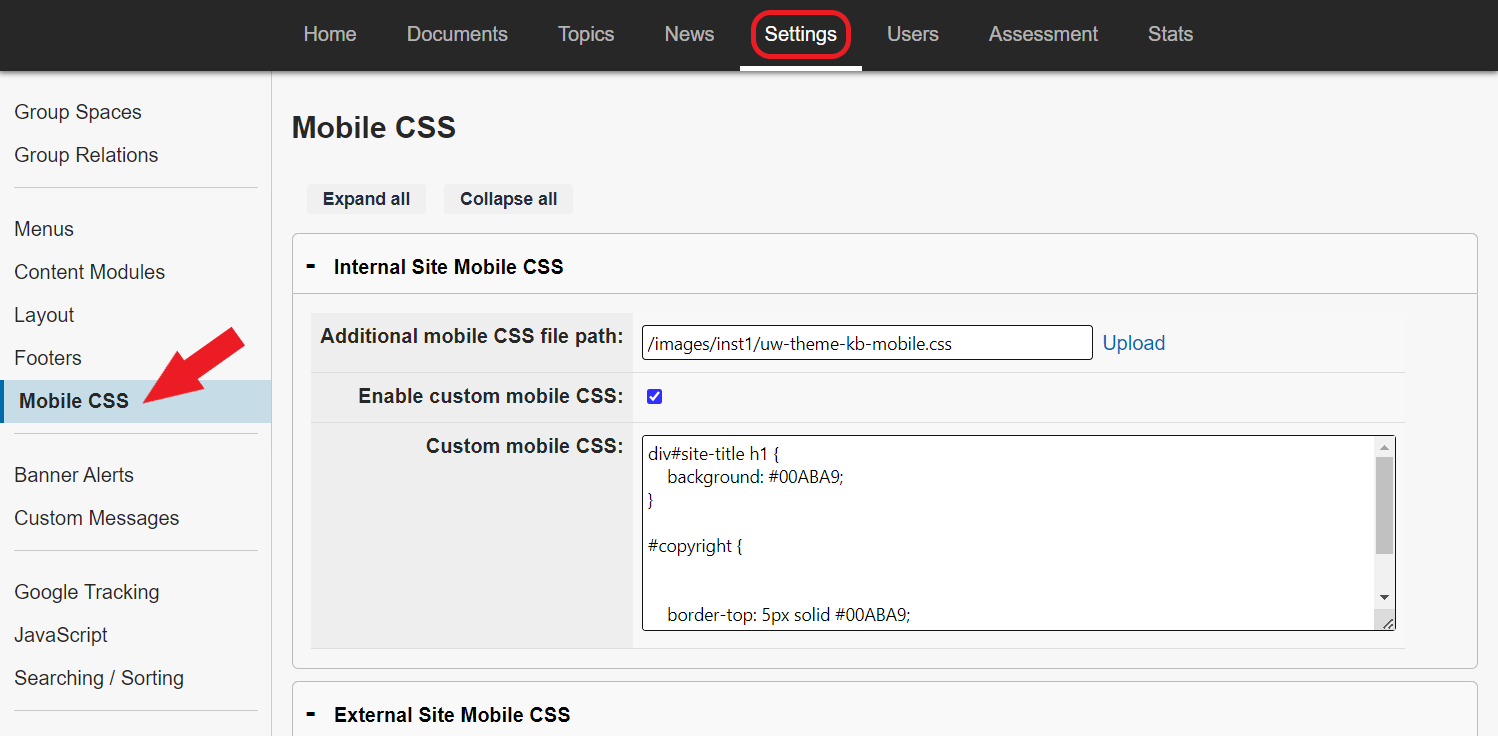
-
Additional mobile CSS file path: If this field is blank, then your site is using the
default_mobile.cssfile that is linked at the bottom of the page. If you would like to replace this default CSS file with your own, you can upload a new CSS file and copy the path to this field. -
Enable custom mobile CSS: Check this box if you have added custom CSS to the field below and would like it to take effect on your site.
-
Custom mobile CSS: Use this field to enter custom CSS that modifies either the default mobile CSS (if using), or the CSS file that you referenced in the "Additional mobile CSS file path" field. This CSS will only be used if the box above is checked.