
Registration Using PAWS
Registration for any UW-Milwaukee course via PAWS
Registration will be done through PAWS for any UW-Milwaukee course you plan to take during the designated self-enrollment timeframe. PAWS will allow you to search, add, and drop courses.
As you use PAWS, be aware that subscription periods are called "terms." Be sure to log out of PAWS when you are done working in it.
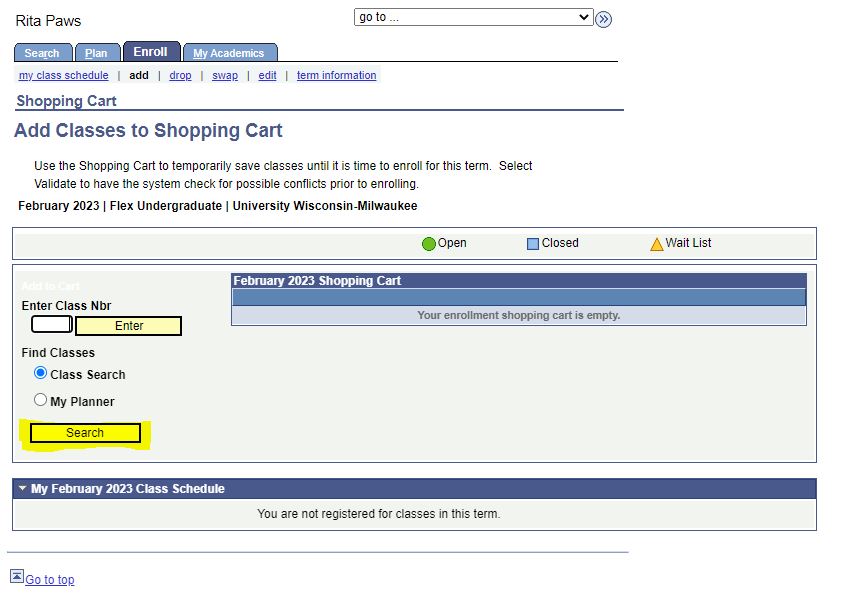
- Click Enroll.

- Click Search.
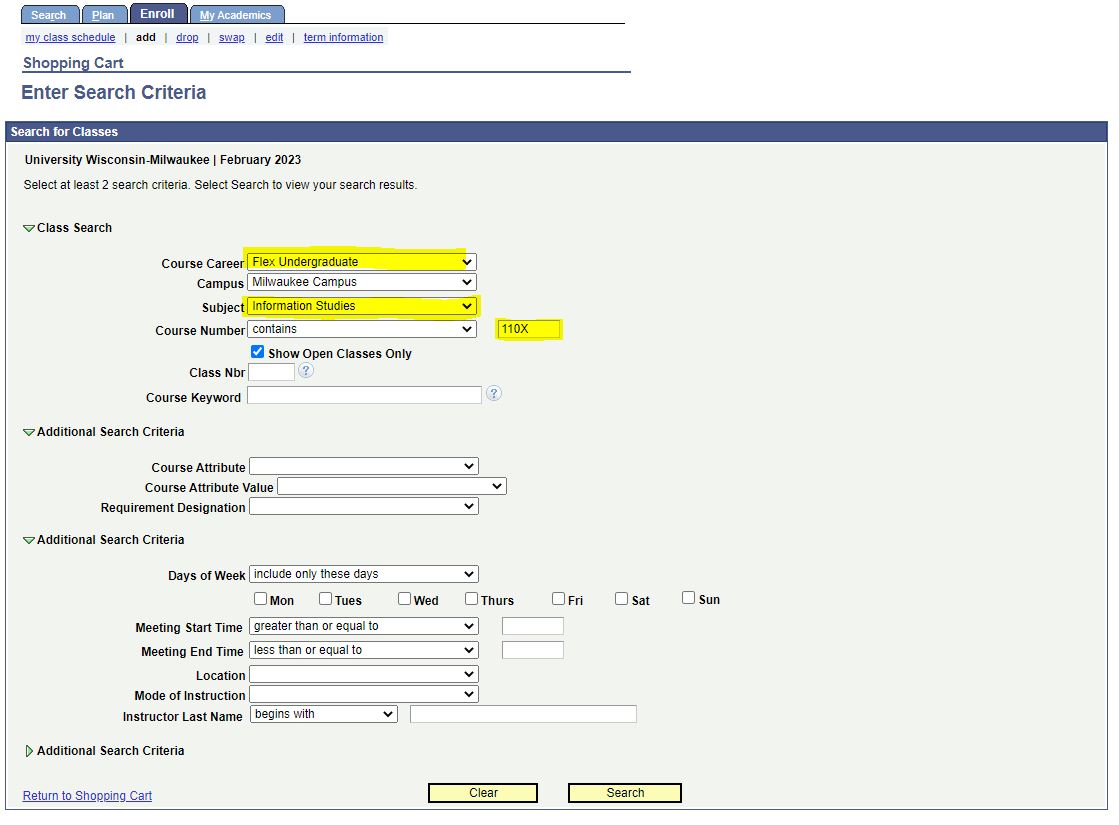
- Select the subject from the Subject drop-down, and enter the course number. Scroll to the bottom of the page and click Search.
NOTES:
- Make sure to enter the X after the 3-digit code (in example,110X), and make sure Course Career says Undergrad Flex Degree.
- Do not enter the course abbreviation (e.g., 110X) in the "Class Nbr" box. Enter it instead in the "Course Number" box.
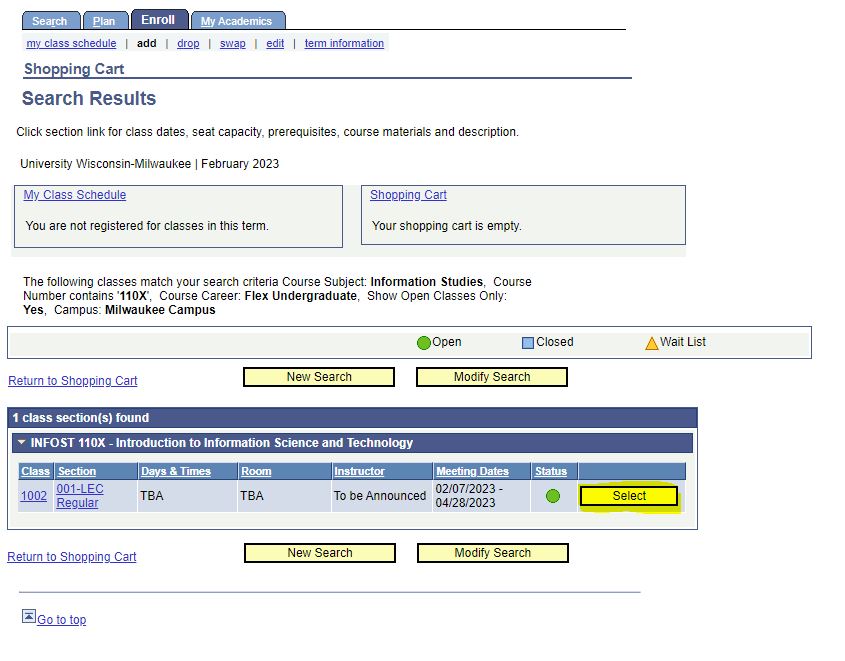
- Click Select.
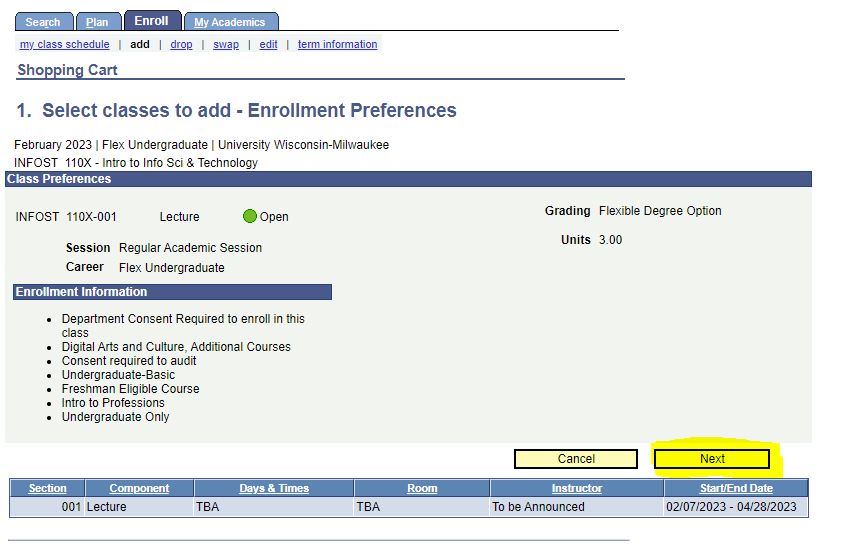
- Click Next.
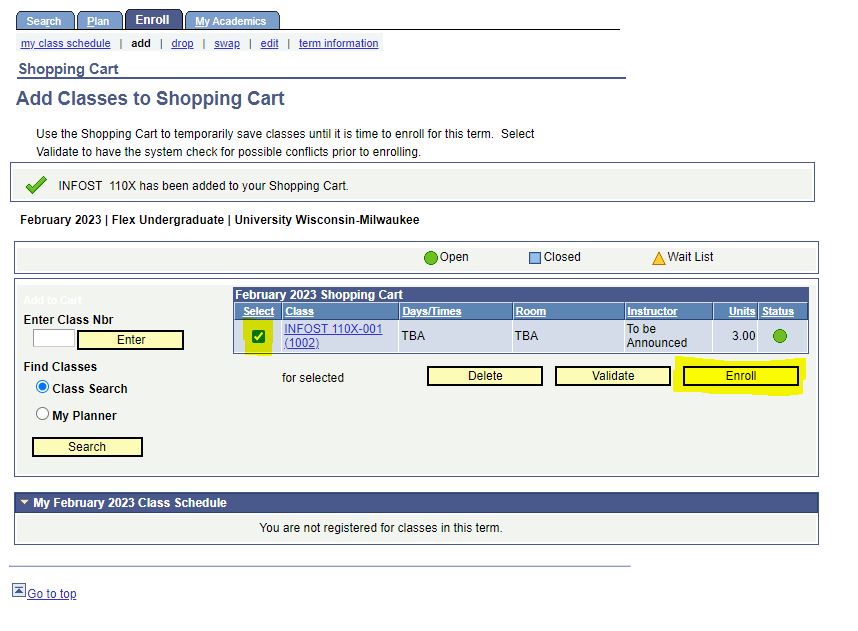
- Make sure the box under Select next to the course is checked, then click enroll.
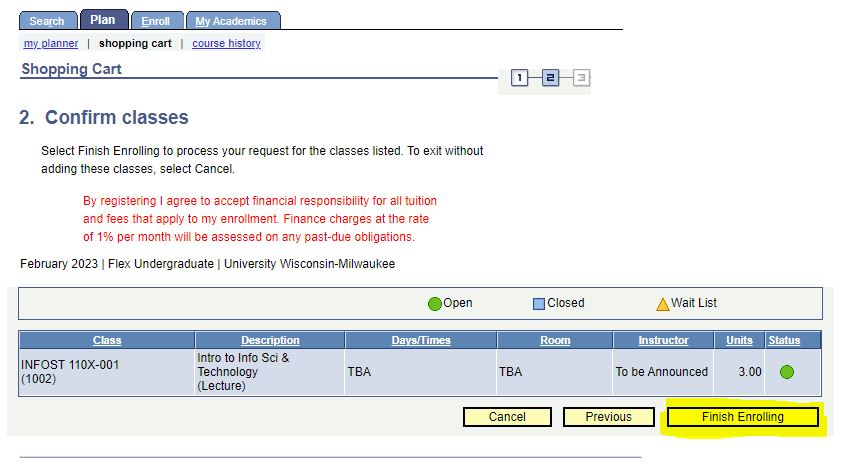
- Confirm the enrollment by clicking Finish Enrolling.
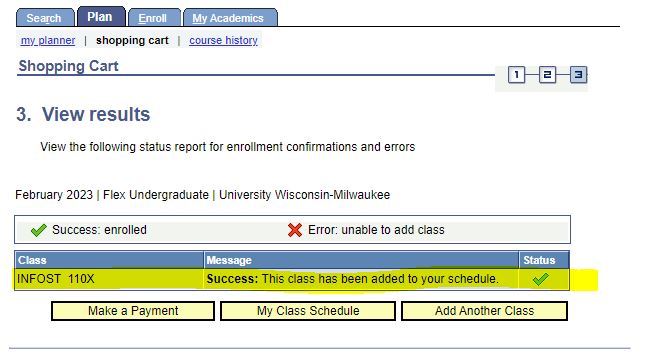
- Confirmation of the enrollment will show as Success.
Drop a single course
- Log in to PAWS
- Under the yellow Academic header, click on the blue Enroll link
- Click on the drop sub-tab
- Check the box in the Select column next to the class you want to drop
- Click the DROP SELECTED CLASSES button
- Review the Confirm your selection screen, then click the FINISH DROPPING button to submit
- A green check mark in the Status column confirms that you have dropped successfully
- If your request was not successful, a Red X with an error message will appear in the Status column